

Why Two-Factor Authentication Matters
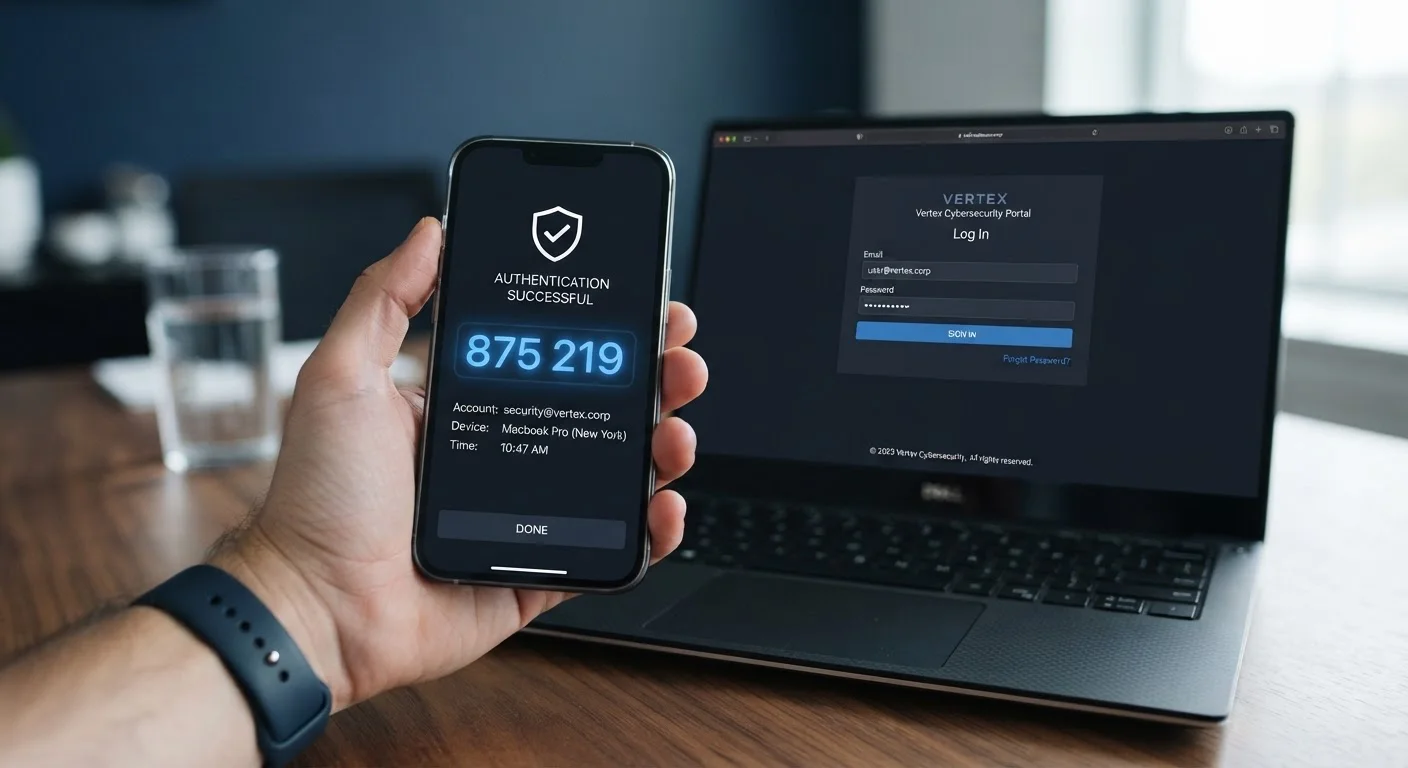
Passwords alone are no longer a reliable barrier. Credential databases are leaked regularly, phishing attacks trick users into handing over login details, and password reuse across sites means one compromised account can cascade into many. Two-factor authentication (2FA) — sometimes called two-step verification — requires a second proof of identity beyond a password, typically a time-sensitive code generated on your phone or sent via text message.
Even if a malicious actor obtains your password, they cannot access your account without also possessing your second factor. Cybersecurity researchers and organizations such as the U.S. Cybersecurity and Infrastructure Security Agency (CISA) consistently highlight 2FA as one of the most impactful steps everyday users can take. For a broader view of foundational habits, see digital safety habits that hold up over time.
SMS Codes Have a Known Weakness
Text message-based 2FA codes can be compromised through SIM-swapping — a technique where attackers convince a mobile carrier to transfer your number to a device they control. While SMS 2FA is still far better than no second factor, an authenticator app or hardware security key eliminates this particular vulnerability. Switch to an app-based method wherever the service allows it.
What You'll Need Before You Start
The setup process is largely the same across platforms, so preparing a few things in advance will make it faster and reduce the chance of getting stuck mid-way.
What you will need
Authenticator App
Generates time-sensitive login codes on your phone, replacing or supplementing SMS codes for stronger security.
Password Manager
Stores backup codes and complex passwords securely, reducing the risk of losing account access after enabling 2FA.
For guidance on managing passwords alongside 2FA, comparing password managers to browser-saved passwords covers the tradeoffs in plain terms. You may also want to review online privacy fundamentals if you're new to thinking about account security more broadly.
Your Email Account Comes First
If an attacker gains access to your primary email, they can use the 'forgot password' flow to reset credentials on nearly every other account you own — banking, social media, cloud storage, and more. Securing your email with 2FA before anything else is not optional; it is the foundational step that makes all other account protection meaningful.
Step-by-Step: Enabling 2FA Across Your Accounts
Follow these steps in order. Starting with your email account and working outward ensures that your most critical accounts are protected first.
Install an authenticator app on your phone
Before enabling 2FA anywhere, download an authenticator app. These apps generate a fresh six-to-eight digit code every 30 seconds that you enter alongside your password. Popular options are available through your phone's app store — search for terms like "TOTP authenticator" or "two-factor authenticator." Once installed, you don't need to create an account; the app works locally on your device.
Enable 2FA on your primary email account
Your email is the recovery address for almost every other account you own, making it the highest-priority target. Navigate to your email provider's security or account settings — look for a section labeled Security, Sign-in options, or Two-step verification. Select the authenticator app option, then scan the QR code displayed on screen using your authenticator app. Confirm with the generated code to complete activation.
Secure your financial and banking accounts
Log in to each bank, brokerage, or payment service account. Look for 2FA under Settings > Security or Profile > Login & Security. Many financial institutions offer SMS codes as their default; if an authenticator app option is available, choose it instead. Where only SMS is offered, it still provides meaningful protection compared to no second factor at all.
Activate 2FA on social media accounts
Social media accounts are frequently targeted because they hold personal data and can be used to impersonate you. On most platforms, find 2FA settings under Settings > Security and Privacy or Account > Two-Factor Authentication. Link your authenticator app, then verify. Repeat this process for each platform you use — treat each one as a separate task.
Extend 2FA to remaining accounts
Work through any remaining accounts: cloud storage services, shopping platforms, work accounts, and subscription services. A useful method is to check your email inbox for account confirmation emails — each sender represents an account worth reviewing. The website 2fa.directory maintains a publicly accessible list of services that support 2FA and explains which methods each supports.
Store your backup codes safely
Every service that offers 2FA also provides one-time backup codes during setup — typically a set of eight to twelve codes. These allow access if you lose your phone. Store them in a password manager or print them and keep them in a physically secure location. Never store backup codes in an unencrypted document on a shared or cloud-synced drive.
Prioritize by Risk, Not Convenience
Start with accounts that have financial access or serve as recovery addresses for others — these are your most critical. Once those are secured, work outward to social and subscription accounts. Even partial 2FA coverage is meaningfully better than none, so don't let perfect be the enemy of good.
The content on this site is for informational purposes only and is not a substitute for professional advice. Always consult a qualified professional for guidance specific to your situation.